> For the complete documentation index, see [llms.txt](https://aibotkit-docs.gitbook.io/documentation/llms.txt). Markdown versions of documentation pages are available by appending `.md` to page URLs; this page is available as [Markdown](https://aibotkit-docs.gitbook.io/documentation/chatbot-editor/google-meet-booking.md).
# Google Meet Booking (Coming Soon)
Let visitors book a meeting with you straight from the chat, with the event and Meet link added to your Google Calendar. Coming soon.
{% hint style="warning" %}
**This feature is not available yet.** Google Meet booking is built and tested, but it is waiting on Google's security review of our app — a required step before any product may connect to your Google Calendar. It is not visible in your account today.
This page describes how it will work so you know what is coming. We will update it, and announce it, the moment the review clears.
{% endhint %}
***
## What it will do
A visitor asks to talk to you. Instead of sending them to a booking page, the agent handles it inside the chat:
> **Visitor:** Can I book a call this week? **Agent:** Sure — what time zone are you in? **Visitor:** London. **Agent:** I have Thursday at 10:00, 11:30 or 15:00 free. Which suits you? **Visitor:** Thursday at 11:30. **Agent:** Booked. I've sent the invite to you — it includes a Google Meet link.
The meeting appears in your Google Calendar with the visitor as a guest, and both of you receive the invite by email.
***
## How you will set it up
1. Open your agent and go to **Actions → Custom Actions**.
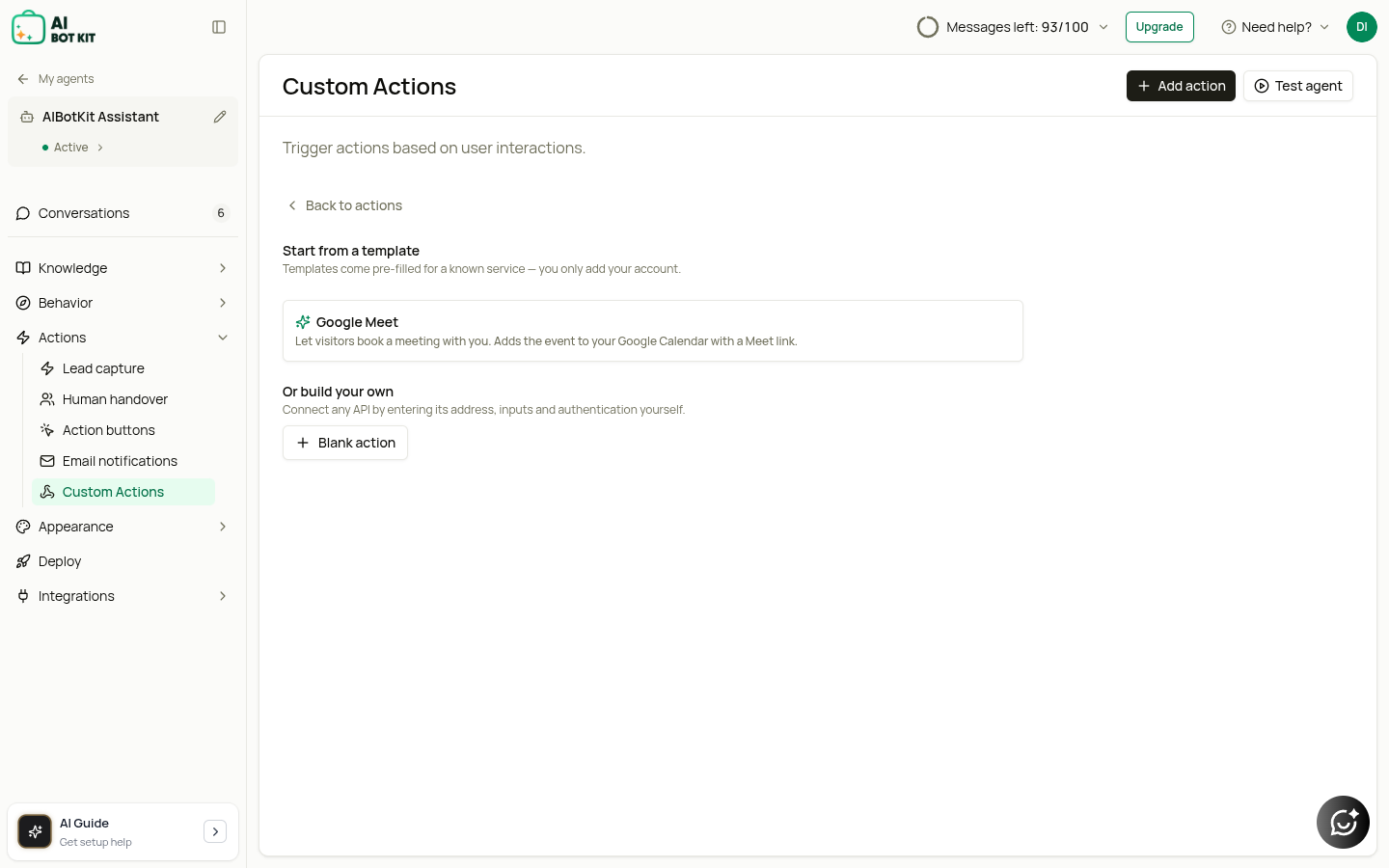
2. Click **Add action**. Under **Start from a template**, choose **Google Meet**.
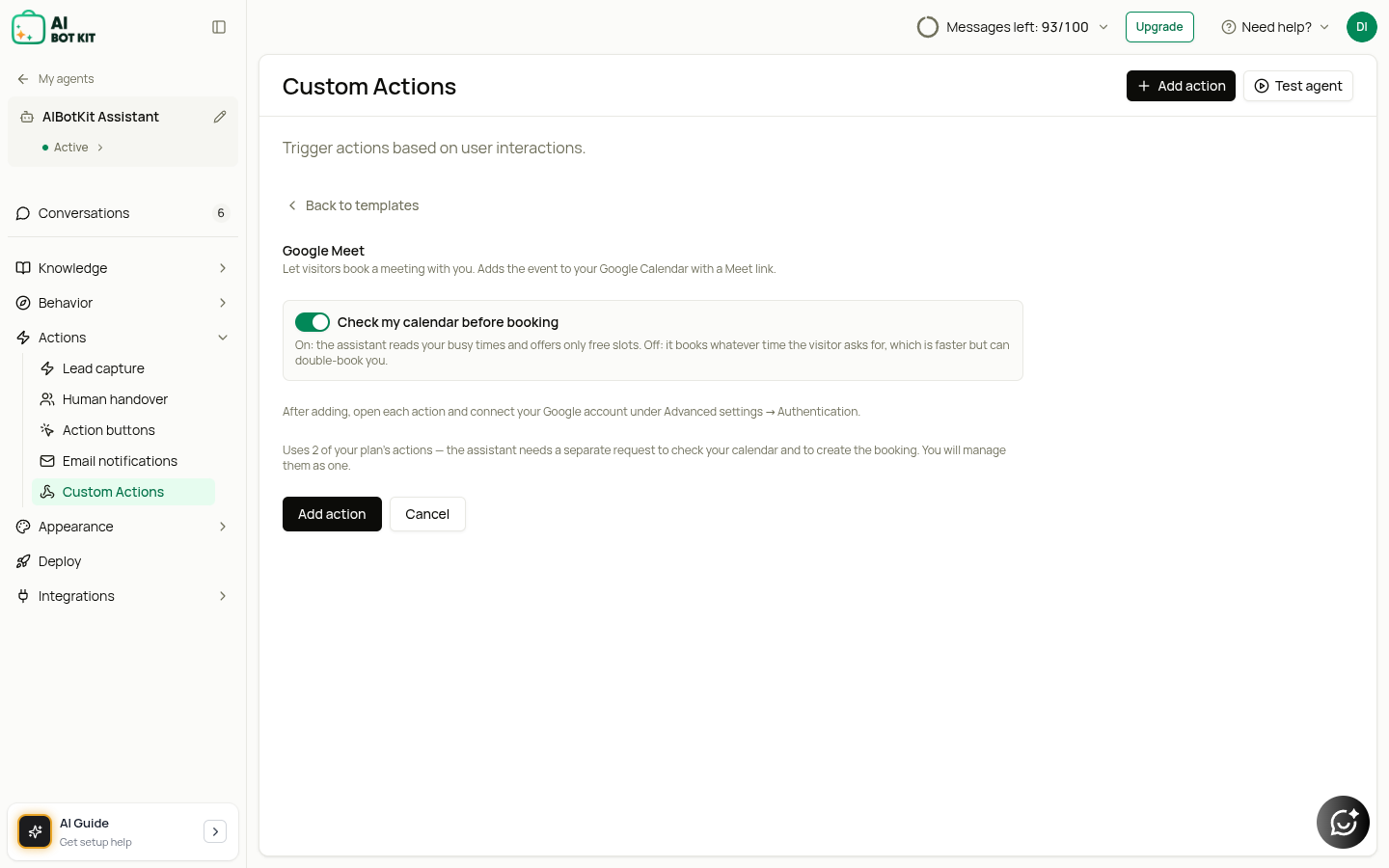
3. Decide whether to leave **Check my calendar before booking** switched on:
* **On** (recommended) — the agent reads your busy times and offers only slots you are actually free for.
* **Off** — the agent books whatever time the visitor asks for. Faster, but it can double-book you.
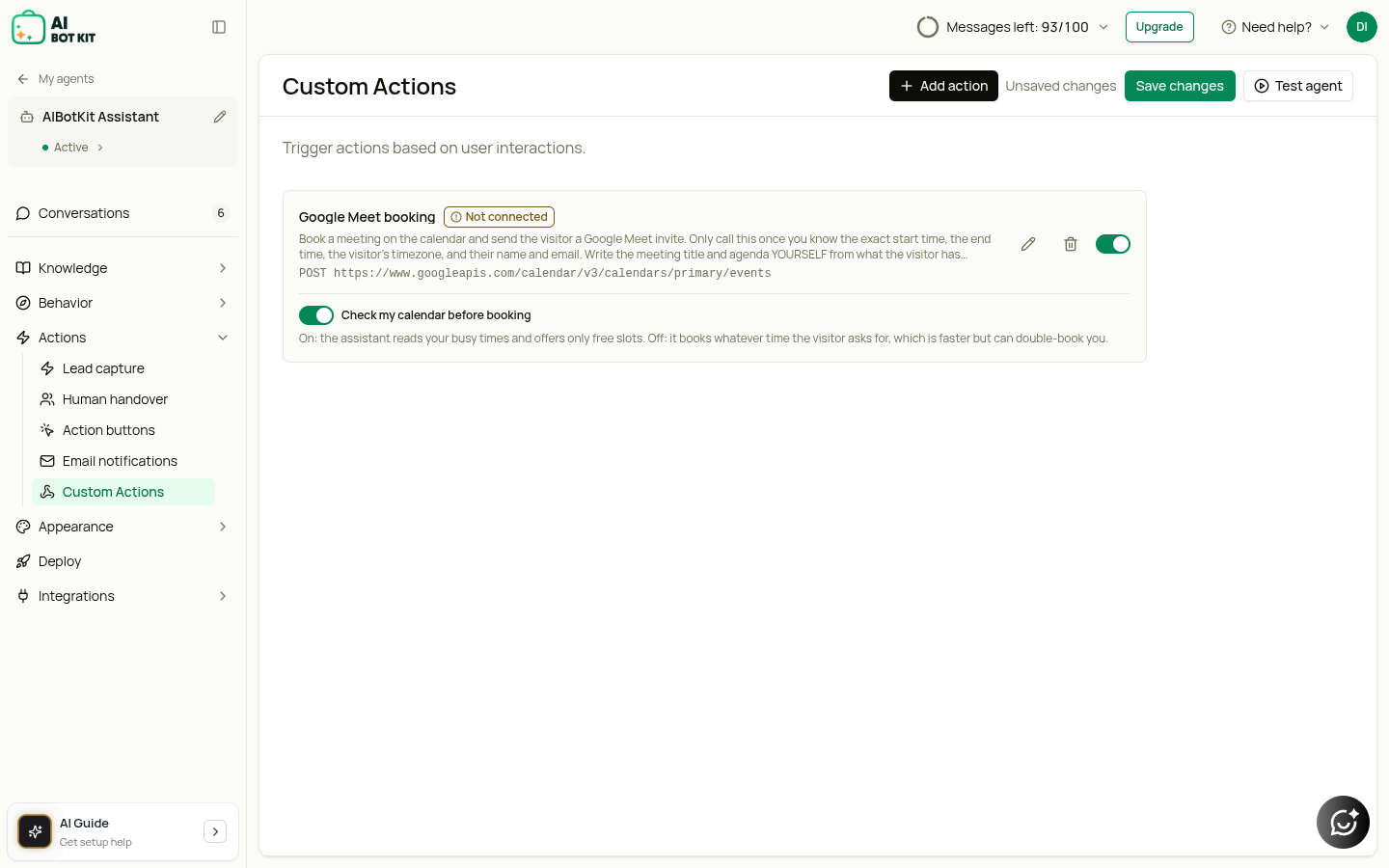
4. Click **Add action**. A single **Google Meet booking** card appears in your list.
5. Open the card, expand **Advanced settings → Authentication**, and click **Connect Google**.
6. Sign in with the Google account that owns the calendar, and approve the two permissions Google shows you.
That is the whole setup. There is nothing to copy, paste, or configure by hand.
***
## What we will be able to see
We ask Google for the smallest access that makes booking work, and nothing more:
| Permission | What it allows | What it does **not** allow |
| --------------------------------- | -------------------------------------------------------------- | ------------------------------------------------------- |
| See when you are busy | Reading your free/busy times so the agent can offer open slots | Reading event titles, guests, descriptions or locations |
| Manage events created by this app | Creating, updating and cancelling the meetings the agent books | Touching any other event in your calendar |
Your busy times are read as anonymous blocks — we can tell *that* you are busy at 10:00, never *what* you are doing. And the agent can only alter meetings it created itself; the rest of your calendar is untouchable.
You can disconnect at any time with the **Disconnect** button in the same place, or revoke access from your [Google account permissions page](https://myaccount.google.com/permissions). Meetings already booked stay in your calendar.
***
## Good to know
* **Set your time zone.** The agent always asks the visitor for theirs and converts, but your agent's own time zone (**Behavior → Instructions**) is what the meeting is created in.
* **The visitor gets the invite by email**, so the agent will ask for their email address before booking.
* **The meeting title and agenda are written from the conversation.** If the visitor has explained what they want to discuss, that becomes the agenda — the agent does not ask again.
* **A playbook makes it smoother.** If you want the agent to always confirm the purpose of the call first, or to offer only afternoons, write that in **Behavior → Playbooks** rather than in the action.
{% hint style="info" %}
Prefer a different booking tool? Any scheduling service with an API can be wired up today using a blank action — see [Custom Actions](/documentation/chatbot-editor/custom-actions.md). The Google Meet template exists to save you that setup, not to replace it.
{% endhint %}
***
## When will it be available?
Google's review of an app requesting calendar access takes several weeks, and the timing is theirs rather than ours. We will announce it here and in the app as soon as it is approved.
In the meantime, [Custom Actions](/documentation/chatbot-editor/custom-actions.md) already work with any other booking system you use.
---
# Agent Instructions
This documentation is published with GitBook. GitBook is the documentation platform designed so that both humans and AI agents can read, navigate, and reason over technical content effectively. Learn more at gitbook.com.
## Querying This Documentation
If you need additional information that is not directly available in this page, you can query the documentation dynamically by asking a question.
Perform an HTTP GET request on the current page URL with the `ask` query parameter, and the optional `goal` query parameter:
```
GET https://aibotkit-docs.gitbook.io/documentation/chatbot-editor/google-meet-booking.md?ask=&goal=
```
`ask` is the immediate question: it should be specific, self-contained, and written in natural language.
`goal` is optional and describes the broader end goal you are ultimately trying to accomplish on behalf of the user. GitBook uses it to tailor the answer towards what is most useful for that goal.
The response will contain a direct answer to the question and relevant excerpts and sources from the documentation.
Use this mechanism when the answer is not explicitly present in the current page, you need clarification or additional context, or you want to retrieve related documentation sections.