> For the complete documentation index, see [llms.txt](https://aibotkit-docs.gitbook.io/documentation/llms.txt). Markdown versions of documentation pages are available by appending `.md` to page URLs; this page is available as [Markdown](https://aibotkit-docs.gitbook.io/documentation/chatbot-editor/custom-actions.md).
# Custom Actions
Let your agent look things up and take action in your other systems — order status, bookings, tickets — in the middle of a conversation.
A **Custom Action** lets your agent talk to another system while it is chatting. Instead of only answering from the content you trained it on, it can look something up live — an order status, a booking, a customer record — and answer from what comes back. It can also send information out, such as creating a support ticket.
You describe, in plain English, *when* the agent should use the action. The agent decides the rest.
{% hint style="info" %}
Custom Actions are available on the **Essential** and **Business** plans — and unlocked free while you are on the **Free Full Access** trial. How many actions you can add depends on your plan.
{% endhint %}
***
## A quick example
You sell online and visitors keep asking *"where is my order?"*
You add one action that reads your store's order records. Now:
> **Visitor:** Where's my order 1042? **Agent:** Let me check that for you… Order 1042 was paid on 12 August and is currently *Processing*. The total was $89.00.
The agent asked for the order number, fetched the real record, and answered from it — no one on your team was involved.
***
## Before you start
You need a **web address** from the other system that returns the information you want, plus whatever login details it requires (usually a key or token). If you are not sure what these are, the person who set up that system — or its support team — will know. Every service words it differently, but "API access" is the phrase to ask for.
***
## Creating an action
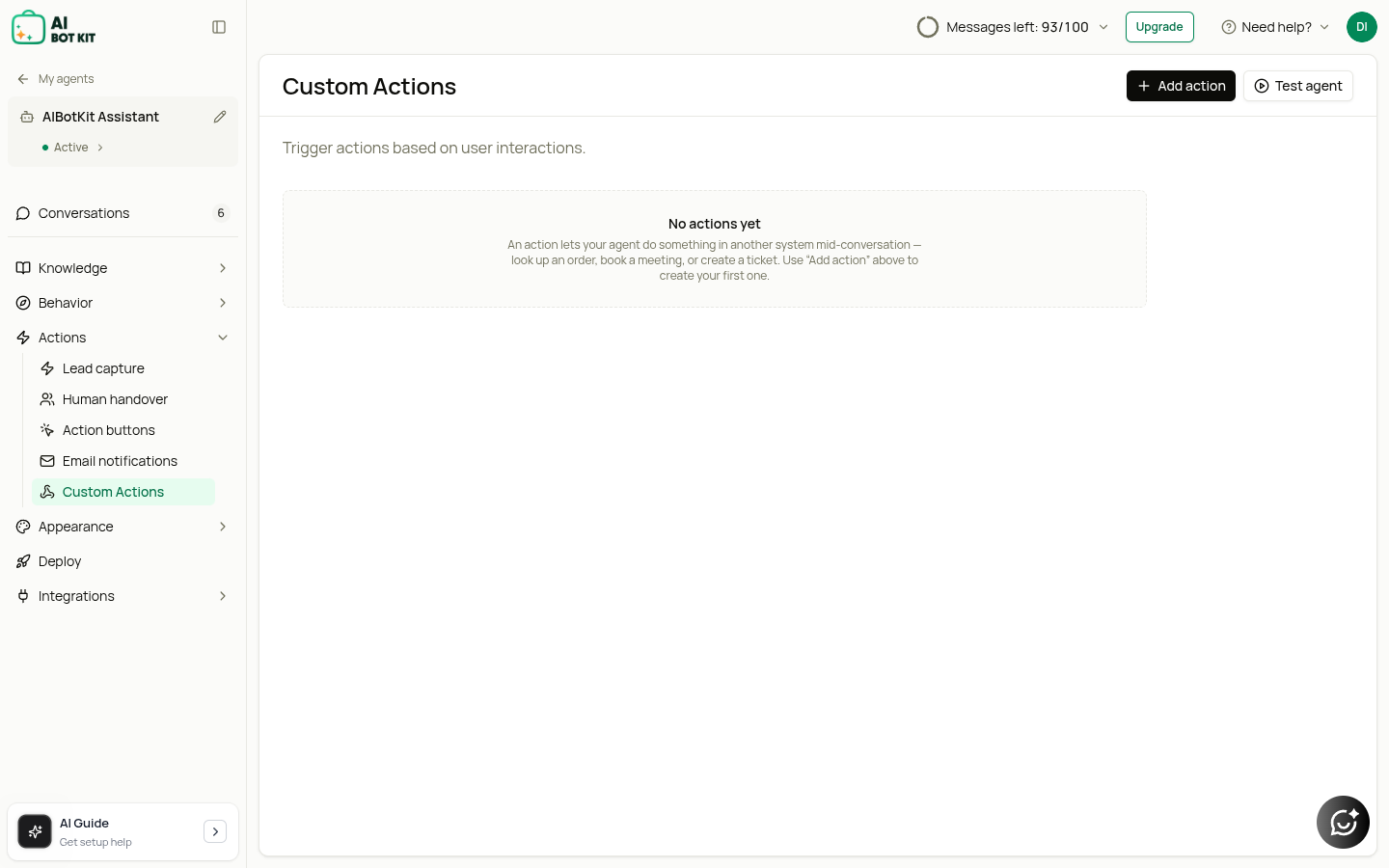
1. Open your agent and go to **Actions → Custom Actions** in the left sidebar.
2. Click **Add action** (top right).
3. Fill in the form, top to bottom. Only the first three fields are required.
### Name
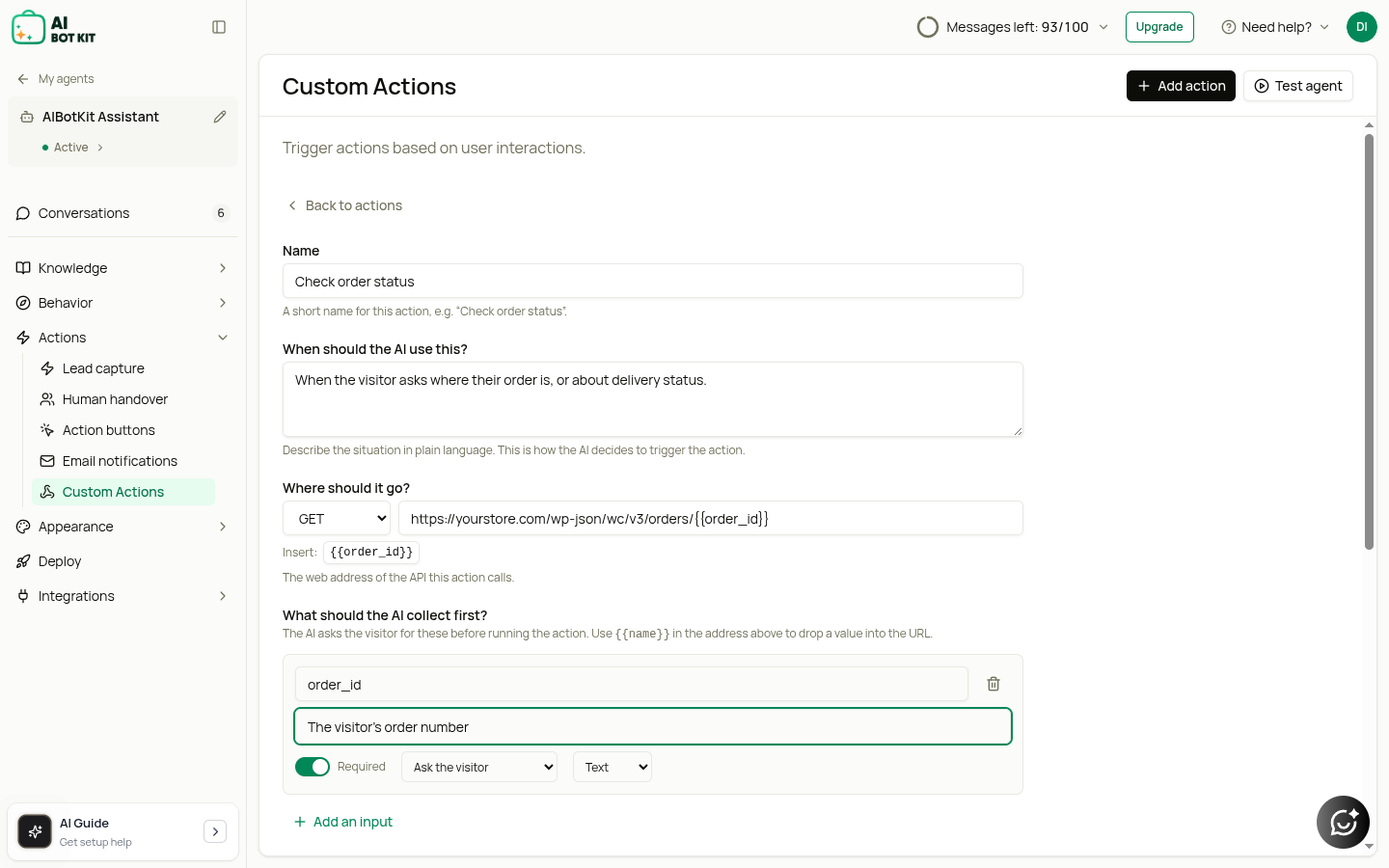
A short, human name for the action, e.g. *Check order status*. This is how it appears in your list.
### When should the AI use this?
This is the most important field on the page. Describe the situation that should trigger the action, in plain English:
> *When the visitor asks where their order is, or about delivery status.*
The agent reads this and decides when to act. Be specific about the situation, not about the mechanics — you are describing a moment in a conversation, not giving instructions.
### Where should it go?
Pick the **request method** (most look-ups are `GET`; most "create something" actions are `POST`) and paste the web address.
If the address needs a value the agent has to collect — an order number, an email — add it as an input first (below), then use the **Insert:** buttons underneath the address to drop it in. It appears as a tag like `{{order_id}}`:
```
https://yourstore.com/wp-json/wc/v3/orders/{{order_id}}
```
### What should the AI collect first?
The pieces of information the action needs before it can run. For each one you set:
* **Name** — a short label such as `order_id`, used in the address and body
* **Description** — what the agent should ask for, e.g. *"The visitor's order number"*. The agent uses these exact words when it asks, so write them the way you want the question to sound.
* **Required** — tick this if the action cannot run without it. The agent will keep asking until it has it.
* **Where it comes from**:
* **Ask the visitor** — the agent asks in conversation
* **From the conversation** — filled in automatically: *Visitor name*, *Visitor email*, *Visitor phone*, *Chat summary*, *Conversation ID*, *Agent ID*
* **Fixed value** — always the same, set by you
* **Type** — *Text*, *Number*, or *Yes/No*
{% hint style="info" %}
The agent asks for these naturally, and can collect several at once if the visitor volunteers them. It will not ask for anything it already knows.
{% endhint %}
### Try it out
Before saving, click **Try it out** to run the action for real, with a value you supply. You will see exactly what the other system sends back.
**Do this before the next step** — the field list below is built from this reply, so testing first turns the next question into a simple tick-list instead of guesswork.
### Which information should the AI receive?
Once you have run a test, this becomes a dropdown listing every field the other system returned. Tick the ones the agent is allowed to read.
{% hint style="warning" %}
**Leave it untouched and the agent receives the whole reply.** That is usually what you want, but if the reply contains personal data — a customer's email, phone or home address — the agent can repeat it to whoever is chatting. If the reply carries more than the visitor should see, tick only the fields you need. A warning appears on screen whenever the whole reply is being shared.
{% endhint %}
Use **Pin to these fields** to lock the selection to exactly the fields you can see today — useful if the other system might start returning more later. **All fields** shares everything, now and in future.
### Message when it fails
What the visitor sees if the other system is down or refuses the request. Keep it calm and useful:
> *I couldn't reach our order system just now — please try again in a moment, or email .*
***
## Advanced settings
Everything the average action does not need is tucked behind **Advanced settings**. Open it only if the other system asks you for one of these.
### Authentication
How the other system checks the request is really from you. Pick the method it documents:
| Method | What you enter |
| ------------------------ | ------------------------------------------------------------------------------------------------------ |
| **None** | Nothing — the address is open |
| **Bearer token** | A single token string |
| **API key** | The key's name and value, and whether it is sent as a header or in the address |
| **Username & password** | The two, as given to you |
| **Google account** | Connect with a click — see [Google Meet booking](/documentation/chatbot-editor/google-meet-booking.md) |
| **Other OAuth provider** | Token address, client ID, client secret and refresh token |
{% hint style="success" %}
Your credentials are encrypted before they are stored, and are never shown again after you save — you will see only the last few characters. To replace one, type the new value over the top.
{% endhint %}
### The rest
* **Custom headers** and **Query parameters** — extra name/value pairs, if the other system asks for them
* **Request body** — for `POST`/`PUT` actions: send the inputs as **JSON** (the default), as **Form data**, or build your own **Custom JSON request body** using the `{{ }}` tags
* **Timeout (seconds)** — how long to wait before giving up. The default suits nearly everything.
* **Maximum reply length** — caps how much of a large reply is passed to the agent
* **Save contact details as a lead** — also records the visitor's name, email and phone under **Leads**
***
## Managing your actions
Each action appears as a card in the list:
* The **toggle** turns it on or off without deleting it — useful for pausing one temporarily
* **Edit** reopens the form; **Back** at the top returns you to the list
* The **trash icon** removes it
* An action whose sign-in details are missing shows a marker so you can spot it before a visitor does
{% hint style="warning" %}
Changes are only saved when you click **Save changes** in the bar at the top of the screen. Clicking **Done** inside the action form closes the form but does not save it yet. If you leave the page with unsaved work, the app will ask you first.
{% endhint %}
***
## What your visitors see
Visitors never see the action, its address, or your credentials. From their side it is a normal conversation — the agent asks for what it needs, pauses briefly, and answers with the real information:
> **Visitor:** Can you check order 1042? **Agent:** One moment… That order is *Processing* and was placed on 12 August.
If the action fails, they see your **Message when it fails** and nothing else.
***
## More examples
**Support ticket**
* **Name:** Create support ticket
* **When should the AI use this?** *When the visitor reports a bug or a problem the agent cannot solve.*
* **Collect:** `subject` (Ask the visitor), `email` (From the conversation → Visitor email)
* **Method:** `POST` to your helpdesk's address
**Delivery lookup**
* **Name:** Track shipment
* **When should the AI use this?** *When the visitor asks where their parcel is or for a tracking update.*
* **Collect:** `tracking_number` (Ask the visitor, required)
* **Method:** `GET`, with `{{tracking_number}}` in the address
***
## Troubleshooting
**The agent never uses my action.** Your **When should the AI use this?** description is probably too vague or too narrow. Rewrite it as the situation a visitor would actually be in, and test with the wording a real visitor would use.
**The agent keeps asking for the same thing.** Check that input's **Description** reads like a question you would ask, and that it is not marked **Required** if the action can work without it.
**It answers with a generic line instead of the data.** Open the action and check **Which information should the AI receive?** — if you ticked a small number of fields, the agent only sees those.
**"Authentication not configured".** Open the action, expand **Advanced settings → Authentication**, and re-enter the credentials.
---
# Agent Instructions
This documentation is published with GitBook. GitBook is the documentation platform designed so that both humans and AI agents can read, navigate, and reason over technical content effectively. Learn more at gitbook.com.
## Querying This Documentation
If you need additional information that is not directly available in this page, you can query the documentation dynamically by asking a question.
Perform an HTTP GET request on the current page URL with the `ask` query parameter, and the optional `goal` query parameter:
```
GET https://aibotkit-docs.gitbook.io/documentation/chatbot-editor/custom-actions.md?ask=&goal=
```
`ask` is the immediate question: it should be specific, self-contained, and written in natural language.
`goal` is optional and describes the broader end goal you are ultimately trying to accomplish on behalf of the user. GitBook uses it to tailor the answer towards what is most useful for that goal.
The response will contain a direct answer to the question and relevant excerpts and sources from the documentation.
Use this mechanism when the answer is not explicitly present in the current page, you need clarification or additional context, or you want to retrieve related documentation sections.